Shadowrocket Setup Guide
Import a Subscription and Verify the Connection
Start by connecting to an existing server, then check how rules route traffic. This guide covers iPhone and iPad in the order you’ll use the app, with the expected result at each step and what to check if something goes wrong.
- 01 Import Details
- 02 Choose a Mode
- 03 Connect
- 04 Verify
- 05 Troubleshoot
Add a Server or Import a Subscription
You’re done when your server appears in the SERVER group on Home.
First, identify what kind of details you have. Information for a single server usually includes its protocol, address, port, and authentication fields. A subscription link retrieves and updates a list of servers. These are not interchangeable: don’t enter a full subscription link as the Host for a single server, or treat a domain and port alone as a complete subscription. Keep the original details handy to avoid losing characters while copying them.
Enter Details Manually in Add Server
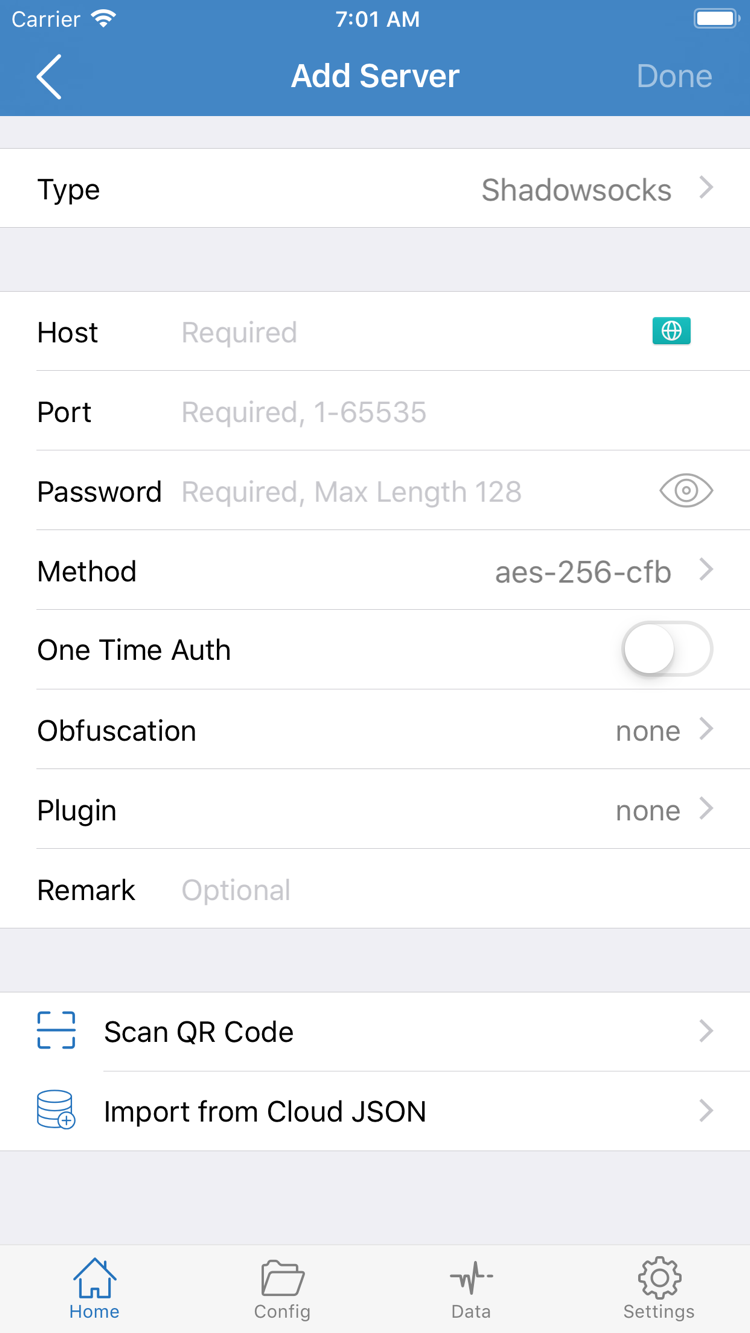
Open Home, find Add Server in the SERVER group, and tap it. Choose Type first, then fill in the fields shown for that protocol. In the form shown in the screenshot, Host is the server address, Port is the port number, and Password and Method must match your existing details. Other Types may show different fields, so follow the details for the selected protocol rather than filling in every field shown in the screenshot.
Enter the address and port in separate fields. Check for spaces, line breaks, or full-width punctuation at either end after copying. Preserve passwords and authentication identifiers exactly, including capitalization where it matters. Don’t substitute a Method just because its name looks similar. If your details include transport or security parameters, expand the relevant settings and check each one; don’t remove existing parameters just to shorten the form. Save, return to Home, and check the entry name to confirm that the server you entered was saved.
Import an Existing Subscription with Subscribe
If you have a subscription link, open Subscribe on the Config page and check whether the selected option accepts a server subscription or a configuration file URL. Paste your existing link where a URL is requested, then save and update. Don’t use a regular webpage address that only opens an account page as a subscription. If the available options vary with the current screen, use their descriptions to identify the content type. For a server import, confirm that server entries appear on Home.
A successful save doesn’t mean the content was retrieved. If the group is empty after returning to Home, check the update result, then verify that the link is complete and the current network can retrieve the subscription. Links may contain personal access credentials; don’t show them in full in public screenshots or comments. Use Scan QR Code for QR code details, then check the server fields it creates. Import from Cloud JSON expects content in the corresponding format; it isn’t a general-purpose substitute for a subscription link.
Once you see an entry in the list, don’t immediately update or import it repeatedly. Keep one clearly identifiable entry and continue to Global Routing. Duplicate imports with similar names make it harder to confirm which server is selected later. For more about entry points and formats, see subscription import FAQs.
Choose Global Routing and the Active Configuration
You’re done when you can identify the current mode and explain which connection route a request will use.
Once the server is listed, return to Home and tap Global Routing to check the current mode. This controls how requests are routed; it doesn’t fill in missing server details. A common point of confusion is the difference between importing a server and activating a configuration: the server provides a connection destination, while the configuration determines which requests use it. Check both separately.
How to Choose Between the Three Modes
Config applies the rules in the active configuration file to route requests through policies such as PROXY, DIRECT, or REJECT. Use it when you have a configuration that defines how traffic should be routed. Config does not mean that every request goes through the selected server. If a rule sets a domain to DIRECT, for example, that request may connect directly even when the connection switch is on.
Proxy routes ordinary requests through the proxy. It’s useful for an initial check that the selected server can handle real traffic. It can’t correct inaccurate server details or replace system authorization; system and app settings may still affect specific traffic. Direct connects directly and is useful as a basic comparison with the proxy route. If you select it, don’t mistake traffic that bypasses the server for a connection failure.
What to Check on the Config Page
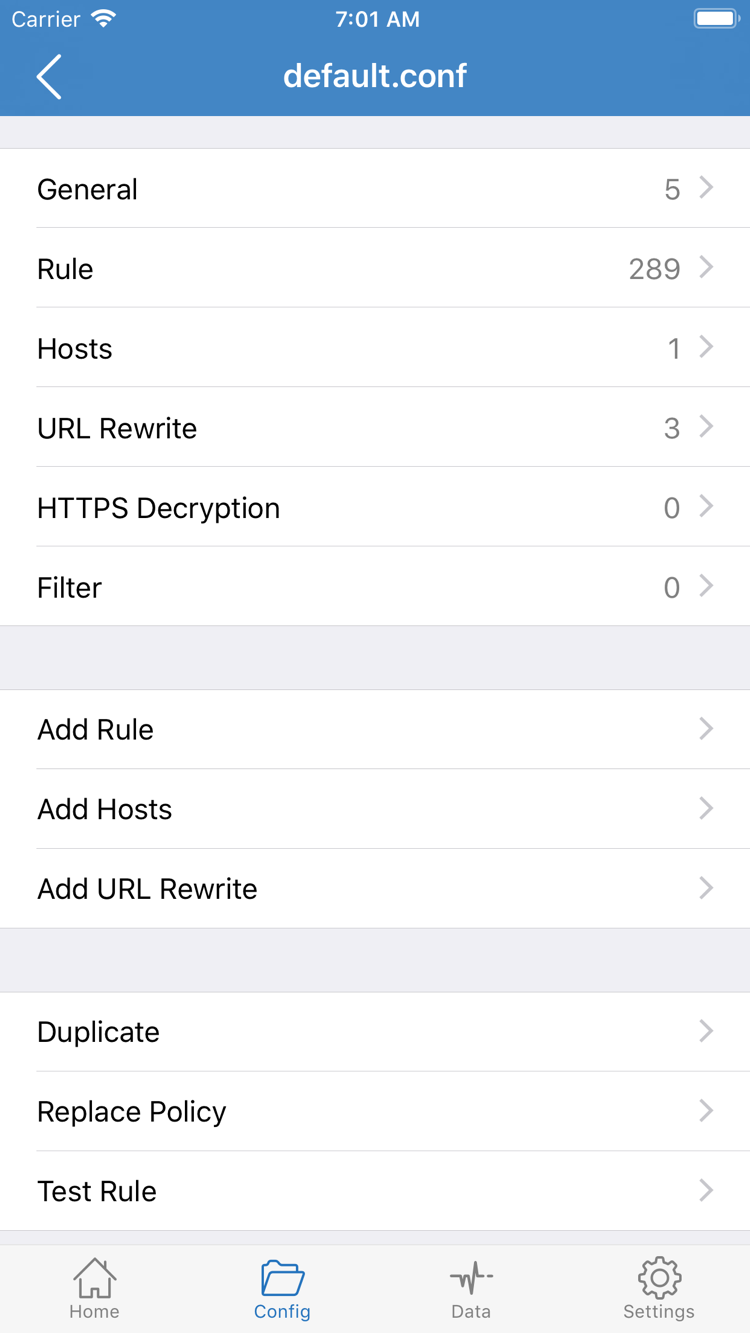
If you plan to use Config, open Config and confirm that the selected file is the one you want to activate. The official screenshot shows sections in the configuration editor, including General, Rule, Hosts, URL Rewrite, and HTTPS Decryption, as well as the Add Rule option. Each section serves a different purpose; you don’t need to change them all to make your first connection. Successfully updating a server subscription doesn’t mean the active rules file has been switched or updated.
For example, this rule matches a domain suffix and selects PROXY. It illustrates the syntax only; example.com is a sample domain, and one rule does not make a complete configuration for every request. Rule order, the fallback policy, and whether the file is active all affect the result.
DOMAIN-SUFFIX,example.com,PROXYFor an initial check, try Proxy to verify your existing server, then switch to Config to see how routing changes. Change only this setting at a time and note what you’re testing. If you change the server, mode, and rules all at once, you won’t be able to compare results. For configuration structure and rule order, see the rules manual. For now, keep your existing configuration and continue to the connection steps.
Select a Server and Turn On the Home Connection Switch
You’re done when the selected server is clearly marked, system authorization is complete, and the connection stays active.
Return to Home and tap the server you want to use in the SERVER group. Check for a selection dot next to the entry. A server appearing in the list doesn’t mean it’s selected as the default, and opening an entry’s edit screen doesn’t select it. If you have multiple groups, note the selected server’s group and name, then keep it unchanged during testing so you can match the result to the same details.
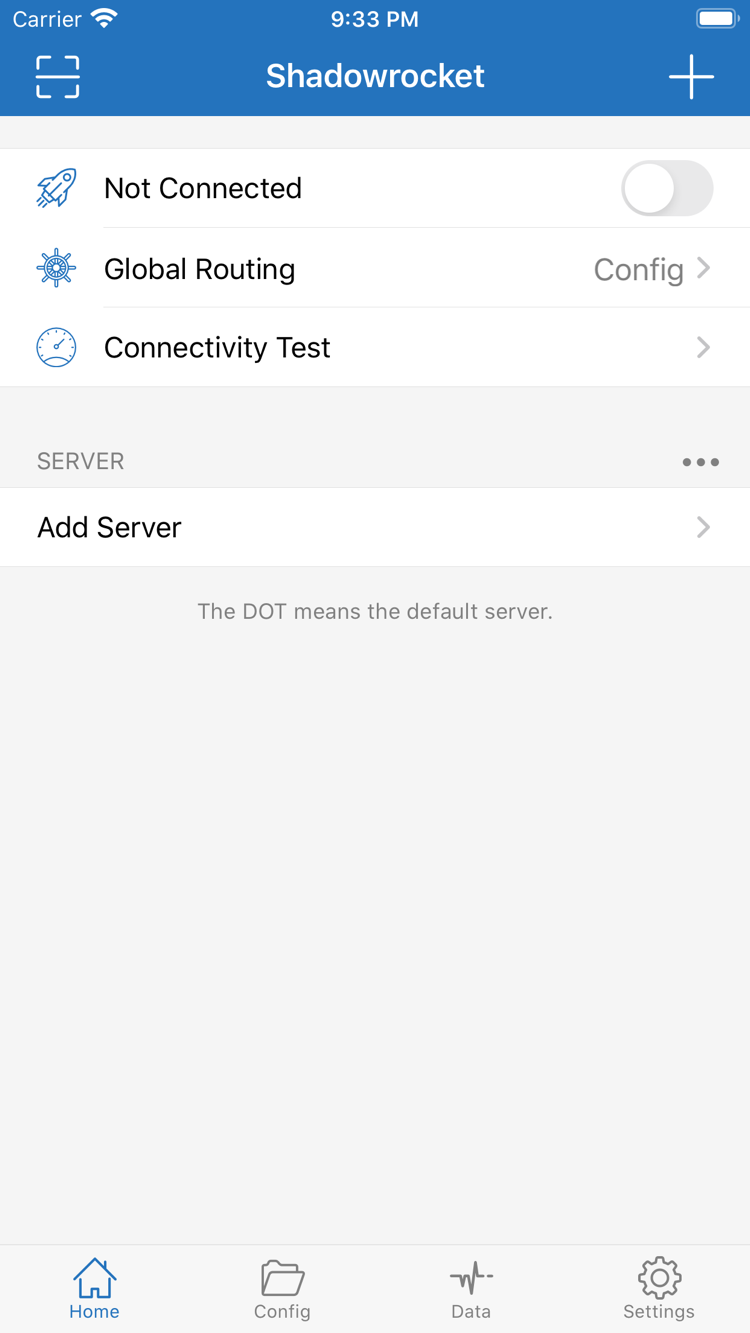
After confirming Global Routing, turn on the connection switch at the top of Home. Before connecting, the screenshot shows Not Connected. When you use the app, watch for the switch and connection status to change; a latency result in the list alone isn’t enough. The first time you connect, iOS may ask to add a VPN configuration. Check the app name in the prompt, allow it, complete device authentication as requested, then return to Shadowrocket.
This permission lets the app establish a system network connection. It doesn’t import a server, generate a subscription, or provide missing authentication details. If you canceled the prompt, return to the app and try connecting again. If device management policies restrict the change or iOS explicitly blocks it, check what’s permitted on the device rather than repeatedly toggling the switch to guess what happened.
After authorization, give the connection time to establish and check that its status remains stable. If the switch turns off again shortly after you turn it on, note any message, then check whether another VPN connection is in use or the system configuration is incomplete. Don’t immediately delete the app and all its settings. Keep the existing details so you can distinguish an authorization issue from a server issue in the troubleshooting steps below.
When the switch stays on and the status says connected, that confirms only that the system connection is established; it doesn’t guarantee that every website will load. Next, cross-check with Connectivity Test on Home and a real-world request. This distinction matters: system status, server response, and rule matching are three separate results, and none can stand in for the others.
Verify with Connectivity Test and Real-World Access
You’re done when the test result matches what happens during real-world access and you can explain the effect of changing modes.
Keep the selected server and Global Routing mode unchanged. On Home, tap Connectivity Test and wait for the check to finish. It shows how the server responds under the current test method; it isn’t a complete check of every protocol, destination, or network condition. A response time doesn’t mean every destination is reachable. If the test times out, check Test Method in Settings before considering removing the server based on a single result.
Next, open a browser or another app that needs a network connection and visit a page you normally use with a known address. Confirm that it actually loads new content rather than displaying a cached copy; refresh once or reopen the page if needed. Test one destination at a time and keep track of the server, mode, network type, and result. Once it works, expand your checks. This makes the results easier to interpret than opening many pages at once.
If access works in Proxy but a specific destination fails in Config, check the active configuration and the policy matched by that destination before assuming the server has failed. DIRECT, PROXY, and REJECT produce different results in Config, even when the connection switch stays on. To investigate further, review the connection log available in the app to confirm the destination domain and policy, then check the rules manual for rule order.
If Connectivity Test responds but real-world access fails, check the protocol parameters, request type, and active rules. If both the test and real-world access fail, first check that the current network has internet access, then check the server details. You can compare results on Wi-Fi and cellular, but repeat the same test after switching networks. Results for different destinations aren’t directly comparable.
Common Issues and Settings to Check
Check one layer at a time and change one setting per test. Keep a working configuration intact.
No Server Appears After Import
Return to the import screen and check whether both saving and updating completed. A subscription, configuration file, and regular webpage serve different purposes. A link opening in a browser doesn’t mean it returned server details the app can recognize. Check that the link is complete, hasn’t been broken by line breaks during copying, and still has valid access credentials. If the original details have changed, use your own latest information. Repeatedly toggling the connection switch while the list is empty won’t add missing entries.
The Switch Turns Off or the Connection Is Active but There’s No Response
If the switch turns off, first check system VPN authorization, app prompts, and any conflicts with an existing connection. If the switch stays on but requests fail, check the selected server, Type, Host, Port, authentication, and transport parameters. Don’t combine fields from different servers, even if their names are similar. Test one selected server at a time. After saving any changes, reconnect so the next result reflects the latest settings.
Test Times Out or Issues Appear After Switching Networks
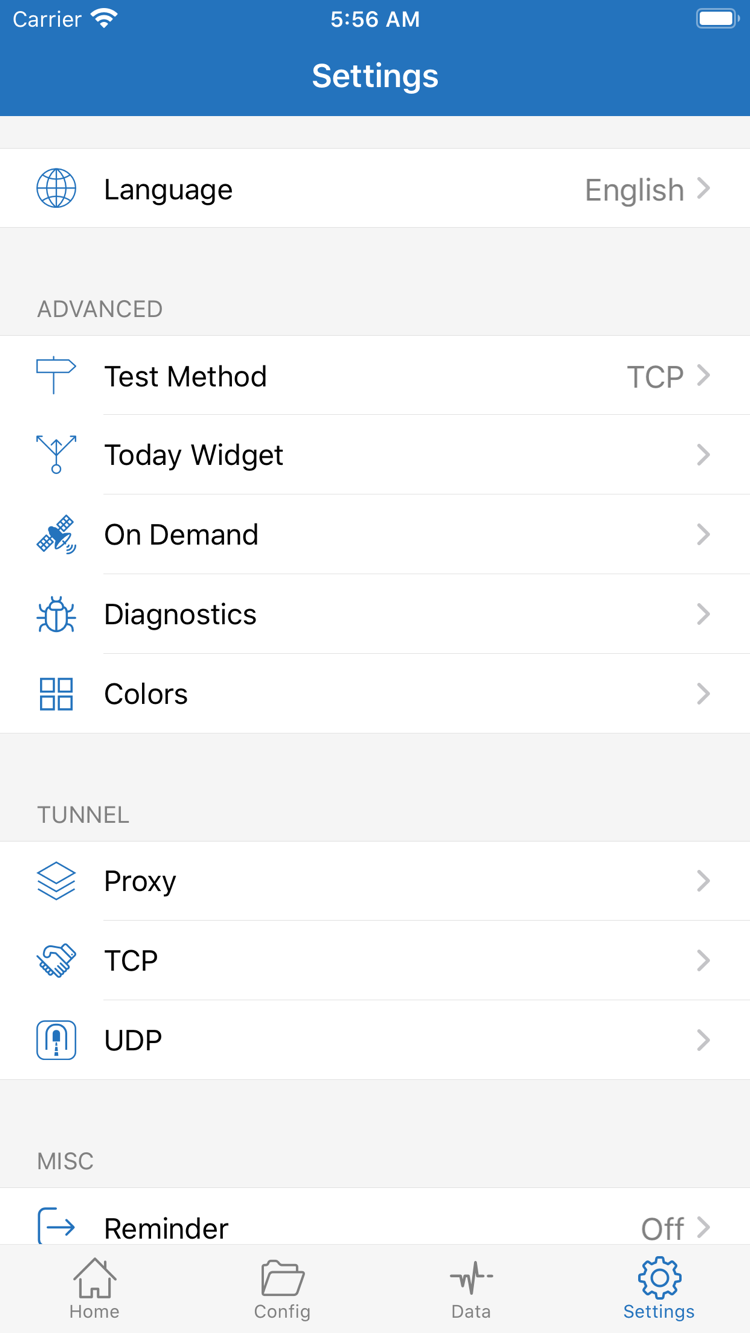
In Settings, check Test Method to understand how Connectivity Test is currently run and interpret the result accordingly. A change in test method can affect the response without changing the server details. If issues occur after switching networks or reconnecting, check whether On Demand is enabled as expected. When troubleshooting for the first time, note its current state so behavior triggered by On Demand isn’t mistaken for a faulty switch.
Settings also includes options such as Diagnostics, Proxy, TCP, and UDP. Use Diagnostics to gather more information after basic checks. Proxy, TCP, and UDP affect more specific connection behavior, so avoid changing several at once just to experiment. Some networks handle different transports differently, and one successful webpage doesn’t prove that every type of request works. Reproduce the issue first, then check the relevant option based on the protocol and error details.
What to Keep for Further Troubleshooting
Record the step where the failure occurred, the current mode, network type, and any reproducible error message. Before sharing a screenshot, hide server authentication details, personal subscription URLs, and other sensitive information. Don’t post your full configuration publicly. Return to the last known working settings and repeat the same test to see whether a recent change caused the issue. This gives you a clearer basis for troubleshooting than clearing everything at once.
After your first successful connection, make changes gradually based on your existing server and specific routing needs. For help with subscription updates, authorization prompts, and connection issues, see the FAQ. For General, Rule, and policy keywords, see the rules manual. If you can reproduce a successful connection, keep the current configuration; there’s no need to change other advanced settings just to complete this tutorial.